By Chris Coyier
One of the new payment integration upgrades we released yesterday was the ability to use negative price amounts in your payment settings. One of the cool things you can do with this new feature is allow coupon codes on your forms that can give your users specific discounts. In this tutorial, we’ll show you how to use our Rule Builder and the new negative price feature to create a dynamic coupon system that’ll impress your friends and incentivize your customers.
Step 1: Create a Coupon Checkbox
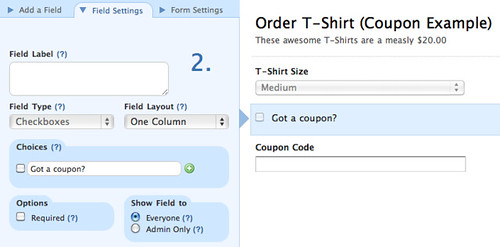
The first thing we’ll do is ask the user if they have a coupon code or not. This should help clarify that ordering the product is possible with our without a coupon, which might be less clear if we displayed a coupon code field at all times. In the Form Builder, just add a checkbox field with a single option titled “Got a coupon?” and then directly below that, our Coupon Code text field.
Step 2: Create a Cloaked Field
In your form, you’ll now need to add a field that we can assign a negative price to in the payment settings. The easiest way to do this is add a Multiple Choice field with a single choice. This may seem a little strange, but this is how we’ll attach the negative prices dynamically to the form and make our coupons system work.
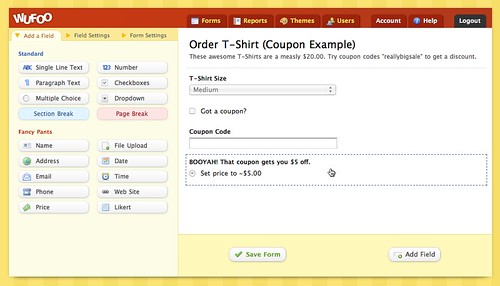
For the Field Title, give it the confirmation message you want to show if the coupon code is valid. In this example, we titled ours “BOOYAH! That coupon gets you $5 off.” For the choice, you can title it whatever you want (this part won’t show to the user when we’re all done), but I recommend using something to remind you of the discount amount you’ll assign to it.

To make the choices and radio input not show to the user just add cloak to the CSS Keyword options under the Field Setting tab for this Multiple Choice field. This is a new CSS Keyword we created that will hide the inputs and choices for any field on a public form, but still show the Field Labels. Very useful in dynamic situations like these where you don’t want the user to be able to manipulate the values of the inputs on the fly, but still want to show some sort of confirmation without having to use a Section Break.
Step 3: Assign Prices and Discounts in Payment Settings
After you save your form, go to the Payment Settings area for the form and assign the discount amount to the Multiple Choice field using a negative price amount. It should look something like this:

Please note that you have to use fixed values for these negative values. You cannot use percentages.
Step 4: Add Field Rules to Make Coupon Logic Work
The final step is set up a variety of conditional logic that makes our form respond property to our users input as well as calculate the price accordingly. Here’s what we need to happen:
- If the “Got a coupon?” checkbox is checked, show the “Coupon Code” text field. This will make sure the “Coupon Code” field is hidden until the box is checked.
- If the “Coupon Code” value is equal to any of our valid codes, show the radio field that has the negative price we assigned to it in the payment settings. When this field shows, then the value will be passed on to the payment processors.

Just set up each Field Rule by wording out the sentence in the Rule Builder. When you’re all done you should have a form that works like our demo coupon code form, which will pass on the coupon codes dynamically to the payment processor like so:

Thanks a lot for following along! We hope you enjoyed learning how to use the Rule Builder and the new Negative Price feature to create a basic coupon system. You can actually get pretty fancy with this setup with a little imagination and play, so we hope you check it out and share with us any cool things you do to enhance your Wufoo payment experiences. Until next time, happy form building!