Form Builder


Introduction

The Form Builder is the heart and soul of Wufoo. This is where all forms are created. The form builder provides the tools to add and remove fields, edit forms, configure email receipts and more. The interface for the form builder is divided into two halves—the right half is a preview of your form while the left half is for editing and building your form.

Requirements

To use the form builder, you will need a Wufoo account. If you want to edit a form, you will need a saved form on your account. If you want to create a new form, you will need room for at least one more form on your account.

Interface Overview

The interface for the form builder is divided into two halves—the right half is a preview of your form while the left half is for editing and building your form.

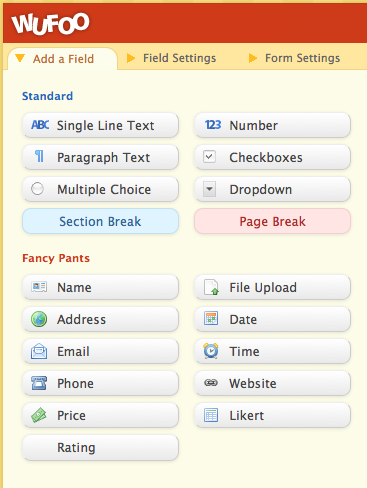
The left half has three tabs. The Add a Field tab shows the field types available in Wufoo. Click a field type button or drag it to your preview pane to add the field type to your field.

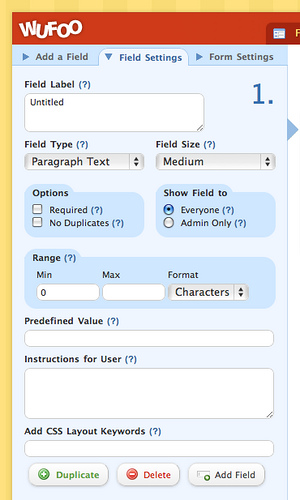
The Field Settings tab allows you to edit the settings for each specific field. Click on a field in the preview pane to start editing that field.

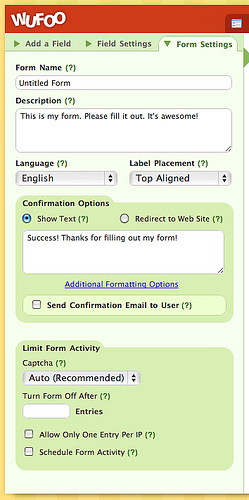
The Form Settings tab allows you to change the properties of the overall form. Click that tab, or the title of your form to edit these properties.

At the bottom of the form builder is the button to save your form.

Form Builder

Adding a Field

Add Field

To add a field to your form, click on the “Add a Field” tab located at the top left of the building pane. This will bring the field menu into the building pane. Likewise, if your form has at least one field, you can click the “Add Field” button located at the bottom of the preview pane.

Once you have the field menu on the building pane, you can click on the name of the field you would like to add. For example, you could click “Single Line Text,” and this will add a single line text field to your form. Each field that you add is placed directly below the previous field. You can also drag the name of the field directly to the location in the preview pane where you would like the field to be located.

See our list of field types to explore the different possibilities.

Editing a Field

After you have added a field, you can then edit the properties of that field. Properties of a field range from title and instructions to randomization and formatting. To bring up the field properties, just left click on the field in the preview pane. This will populate the builder pane with the field property interface.

Descriptions of each type of field including how it is validated can be found in our field type documentation

Each type of field property is full explained in the field settings documentation.

Form Settings

Every form has a set of properties including what you would like to happen when the user hits the submit button, a description for your form and determining what emails get sent out on submission among other features. To access your form properties you can either click on the form name in the preview pane or you can click the “Form Settings” tab in the upper left hand corner of the building pane. Upon clicking, the form properties panel will appear in the building pane.

For an in depth explanation of all form properties, view the form settings documentation.

Reorder, Duplicate and Delete

There are three actions you can perform from the preview pane: reordering, duplicating, and deleting fields.

Reorder - To reorder your fields, left click and hold on the area surrounding the field. Then drag the cursor up or down to the position you would like the field to be in. When you left go of the left mouse button, the field will snap into its new position. Be careful not to click the orange arrow or the field itself as those spots will not drag the field. Only the surrounding area, which turns yellow if you click on it, can be dragged.

Duplicate and Delete - Click on a field to make it the active field. You can recognize this by a yellow box surrounding the field. At the bottom right corner of the yellow box are two icons: a ‘+’ and a ‘-‘. The ‘+’ is duplicate and the ‘-’ is delete. Pressing ‘+’ will create an exact copy of the field directly underneath it. Pressing ‘-‘ will delete the active field. If the field had been previously saved (meaning data may have been submitted to it) then you will be prompted to confirm the deletion. Otherwise, the field will just be deleted.

The Different Field Types

Information about all of the field types in Wufoo can be found in our list of field types.

How exactly do admin-only fields work?

Admin only fields are fields that can only be seen when you are viewing entries inside of Wufoo and they cannot be seen by users filling out the public form. They require that you log into Wufoo and view the entries through our entry manager. To view an entry inside of Wufoo, you would head to your form manager section and click on the “Entries” button beneath the form name. When you click through and edit the entries that you’ve received, the admin only field will be visible.

An example might be a teacher giving a test to her students. The form would be public and the students would each fill out a form with their answers. Included in the form would be an admin only field named “Grade”. When the teacher logs into Wufoo, they can go through the different entries and assign a grade to each submission using the admin only field.

Can I send and customize confirmation emails to the people who fill out a form?

Form Settings Tab

To begin using receipts, create or edit a form that has an email field and click on the “Form Settings” tab. There, you will see a checkbox to “Send Email Receipt to User.” By checking this, all of the receipt configuration options will open up. You can specify which email field to send it to, what email address you’d like them to reply to.

In order to add a custom message or include a receipt of the form submission, you’ll want to click on the “Customize Confirmation Email” button. You will then be able to create a custom message and choose whether or not a copy of the submission should be included. The subject of the email will be the name of your form. For more information on customizing the confirmation message to included data filled out by the user, please take a look at http://wufoo.com/docs/notifications/#inbox.

How can I restrict a form to allow only one entry per user?

Solution 1

If you’re editing a form, click on the “Form Settings” tab where you’ll see an option to “Allow Only One Entry Per User”. This is used to prevent users from filling out your form more than once. Wufoo uses the computer’s IP address to detect multiple submissions. Note : It is common for businesses and universities to have multiple people on the same IP address. If your form is configured to allow only one entry, it will only allow one person to fill out the form if they share an IP address.

Solution 2

When you’re editing an individual field, there may be an option for “No Duplicates” in the “Field Settings” tab. If this option is selected, that field will not allow for duplicate submissions. If you only wanted one instance of an email address or website to be submitted, this option would be useful.

How can I add HTML or images to a form?

Adding HTML or images to your form is a snap. Wufoo Titles, Section Breaks, Instructions, or Descriptions all accept HTML markup. So, to add an HTML tag that behaves like this, you need to insert text that looks like this:

<a href="http://wufoo.com">Wufoo Home Page</a>

Other basic HTML tags (like images) work similarly. Check out this basic HTML tutorial to learn more.

Can I copy a field from one form to another form?

Sorry, but all forms in Wufoo are completely separate. There is no way to move a field from one form to another form.

Updated : August 23rd, 2011