By Chris Coyier
Wufoo is perfect for creating donation forms. In this tutorial we’ll create The World’s Simplest Donation Form, which consists of only a single field. This is a price field, which allows a user to type in how much they want to donate, and then proceed directly to checkout where they will be charged that amount. Creating a donation form like this through Wufoo means your form will look great and provide as professional of an experience as possible.
Let’s walk through the process from start to finish. There is a screencast tutorial below, and written instructions below that depending on how you roll.
Screencast Tutorial
1. Bona Fide Plan & Payment Gateway
If you just want to give this a test drive to see what it’s like, you can process five transactions for free on our Free or Ad Hoc plans, but if you plan to go live with a donation form, you’ll need to be on our Bona Fide plan or above and have Payment Gateway set up. If you don’t have a Wufoo account yet, you can choose a plan and sign up here. If you do, you can see your current plan and change if needed by logging in and going to the Account tab. To see which Payment Gateways we support and compare them, see our Which Payment Gateway Should You Choose? page.
2. Create the Form
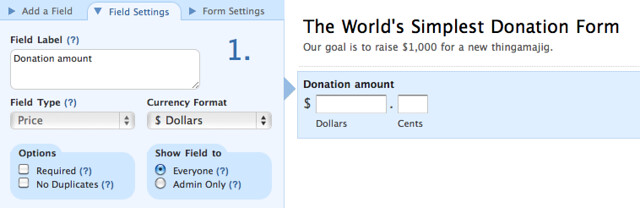
We’re going to create The World’s Simplest Donation Form, which has only a single field on it, a Price field. For this form, the idea will be that people type in the amount they wish to donate. From the Form Manager, click New Form! then name it, click the Price field to add it to the form, name that, and save.
3. Add Payment Integration
After saving your form, head back to the Form Manager and click the Payment button beneath this new form. This will take you to the screen for setting up payment integration. Here you will enter information about the Payment Gateway you use. Then you’ll assign prices to fields on the form. Select the donation price field from the dropdown and click the Assign Prices to this Field button.
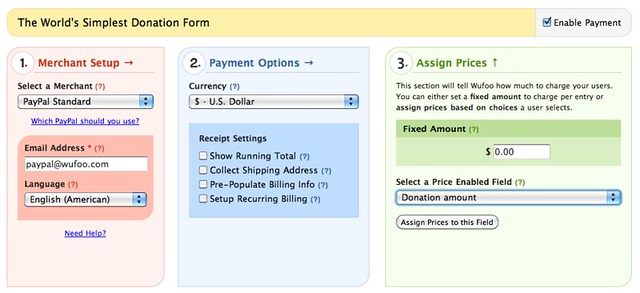
Then click the Save Settings button and your form is all set to start accepting donations!
Taking it Further
Remember, keeping forms simple (fewer fields) increases their conversion rate. So don’t add extra fields to your form without being very sure you need them! That said, perhaps adding a few more fields makes sense for you. Check out our Donation Form template for in our Form Gallery for ideas.
Start using our Donation Form Template now!
Taking things further, you could hook it up to one or more of our integrations to grow your mailing list, handle lead management, etc.
Plan to reward your donators with gifts based on the donation amount? Check out our tutorial on creating a Dynamic Tiered Gift System.